Joining and Parties
Parties
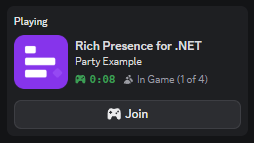
Discord can show you and your friends in a party together for a specific game.
The Party can be used to create parties and control their size. With helper functions such as DiscordRpcClient.UpdatePartySize you can dynamically update when players join and leave.
client.SetPresence(new()
{
    Details = "Party Example",
    State = "In Game",
    Party = new()
    {
        ID = "my-unique-party-id",
        Privacy = Party.PrivacySetting.Private,
        Size = 1,
        Max = 4,
    },
});
The Party.ID is a unique id (to your application) that tells Discord what party the user is currently in. When two users use the same ID, Discord will group them together.
Tip
If the size is set larger than actual number of users sharing the ID, then a default "fake" user is displayed instead.
This value is also synchronised across all clients with the same ID.
Joining / Lobbies
Users can use your Rich Presence as a very basic invite / join system. As long as the Party is set, you are able to provide special secret that discord will share to other users.
When accepted/joined, the other player's game will be launched and a OnJoin will be called with the secret you provided in your presence.
Launching your game
Discord uses custom URI Schemes to launch your game. It requires one to be set to show any of joining buttons.
This library provides functionality to do this. Before initializing, use the RegisterScheme function:
client.RegisterUriScheme();
client.Initialize();
If you have a Steam game, you can launch using the steam:// scheme instead by providing an appid:
client.RegisterUriScheme("657300");
client.Initialize();
Note
You need to register the URI scheme to see other user's Join button and invites.
Warning
MacOS requires schemes to be registered through App Bundles. This library cannot access your App Bundle and cannot automatically register non-steam games.
If you are publishing a MacOS game, you must provide either a Steam App ID or a custom uri scheme (such as my-game://launch) to the RegisterUriScheme.
Setting a Secret
To join a game, users will use a secret to connect to a lobby. These secrets should contain enough data to know who & how to connect to lobby but shouldn't include sensitive data like IP addresses.
As a basic example, consider this implementation:
client.SetPresence(new()
{
    Details = "Party Example",
    State = "In Game",
    Party = new() { /* .. Party Details .. */ },

    //  This is how a launching app will figure out how to connect to the game.
    Secrets = new()
    {
        Join = Lobby.CreateJoinToken(Lobby.current.ID)
    },
});
The Lobby.current.ID and Lobby.CreateJoinToken() will be up to your implementation. A naive approach would be to combine the lobby id and the password together. However, a better approach would be to use a signed key such as a JWT which could include the lobby id and the host could verify this token signature before allowing the user to join.
Tip
Rich Presence is not a networking stack and does not provide lobbies or match making. Consult your engine's manual or check out Steams Documentation for their lobbies.
Joining
Users can join directly into a lobby from the Discord client via a "Join" button. The host must have the following set in their presence for this to be available:
- Party
- Secret
- Registered URI Scheme
When a joining user clicks the "Join" button, Discord will launch the application via the URI Scheme.
Once loaded, the application will subscribe to the EventType.Join, which will make Discord send a Join message via the OnJoin event. This message will contain the secret set in the host's presence.
The application can use that secret to then join the lobby. As a basic example:
client.Subscribe(EventType.Join);
client.OnJoin += (object sender, JoinMessage args) =>  {
    Lobby.JoinWithToken(args.Secret);
};
The Lobby.JoinWithToken will be dependant on your implementation. However, using a JWT as described earlier, you can extract the target Lobby ID and verify the signing signature when attempting to connect:
Note
We do not automatically subscribe to events. This library is primarily uesd for simple Rich Presence and the Joining is a feature generally only useful for Games.
Because of this, by default this app will not receive Discord Join events. You must call the DiscordRpcClient.Subscribe.
Tip
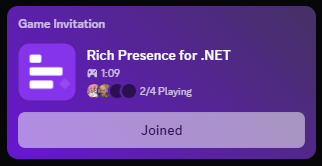
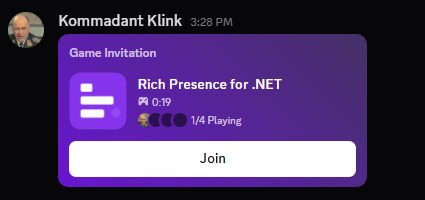
You can directly invite users to play your game. They will see a game invitation like so, and if they have run the URI Scheme registration too, they will be able to launch from here.
Ask to Join
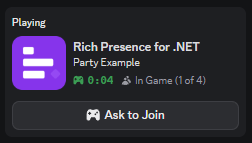
To make your lobby a invite-only, set your Privacy Settings to Private.
This will change the "Join" button to a "Ask To Join". When clicked, a message will appear in the host's Discord client. The host can directly respond to this in Discord, or your app can listen to this event and provide a way for the host to respond in game using the OnJoinRequested event.
To respond in game, subscribe to the EventType.JoinRequest and use the Respond(User, Boolean) to tell discord to accept or ignore:
client.Subscribe(EventType.JoinRequest);
client.OnJoinRequested += async (object sender, JoinRequestMessage args) => {
    var result = await UI.ShowRequestToJoin(args.user); // Hypothetical UI system
    client.Respond(args.User, result.accepted);
};
Spectating
Spectating has been removed from Discord 😢
Code Example
The DiscordRPC.Example project contains a very basic example of the joining flow. Use 2 seperate clients as an example.
# Run on the first pipe
dotnet run --framework net9 --project DiscordRPC.Example --example=Joining --pipe=0

# Run on the second pipe
dotnet run --framework net9 --project DiscordRPC.Example --example=Joining --pipe=1
Note
While it does register a scheme, this example cannot launch properly because it just registers the dotnet runner.
This wont be a problem in a full application.